Here is an example of the Software Update Wizard in action, from adding it to your software application through to delivering an updated version to your customers.
There are more worked example scripts on the Examples page.
There are 2 ways of initiating a Software Update Wizard session.
(N.b. The WebUpdateWait()
function is only supported from the wuw4.dll
and causes program control
to return to your application only once the Software Update Wizard has
completely finished its processing. In other words,
WebUpdateWait() causes the Software Update Wizard to work synchronously with
your application. Conversely, the call to WebUpdate() returns
immediately, causing the Software Update Wizard to work asynchronously with
your application.)
If you are using the wuw4.dll Windows Dynamic Link Library to launch updates, you need to reference the wuw4.dll file in your project or dynamically load it at run time.
The wuwinstaller.exe package provided with the Software Update Wizard contains the files you need to redistribute to your users - see Deployment. Wuw4.dll is normally installed into the Windows folder.
The code examples quoted on this page show how to use wuw4.dll from various development environments. If yours is not covered, remember that wuw4.dll is a simple Windows DLL. It does not need to be registered with Windows and must be located somewhere your application can find it (typically in the Windows folder). Load it / call its exported functions exactly how you would treat any other Windows DLL.
If you usw wuwstub.exe, the implementation is simple. You just pass the URL of your update script as a command line argument to wuwstub.exe, via the API function ShellExecute() or equivalent:
ShellExecute(NULL, "open", "wuwstub.exe", "http://www.myserver.com/updatescript.txt", NULL, SW_HIDE);
The following sections summarise how to integrate and use wuw4.dll with your application in various development environments.
In VB, declare a function prototype:
For the WebUpdate(URL) function:Private Declare Function WebUpdate Lib "wuw4.dll" (ByVal URL As String) As Long.. or for the WebUpdateWait(URL, TimeOut) function:
Private Declare Function WebUpdateWait Lib "wuw4.dll" (ByVal szURL As String, ByVal nTimeOut As Integer) As LongNote that the "ByVal" switch is required.
In C/C++, you should include the supplied wuw4.lib library file in the Link / Object /library modules section of your project's build settings.
Also, include the WebUpdate.h file in the source file which uses the dll's WebUpdate() function.
Alternatively, you can use LoadLibrary() API at runtime to use the wuw4.dll module.
In C#, you should include the following 'Using..' line:
using System.Runtime.InteropServices;
Then declare an instance of class suw within your class declaration:
public class suw
{
[DllImport("wuw4.dll")]
public static extern bool WebUpdate(string URL); // Asynchronously
// or...
[DllImport("wuw4.dll")]
public static extern int WebUpdateWait(string URL, UInt32 nTimeOut); // Synchronously
}
In Delphi (2007) ShareMem must be declared as the first item in the uses of the unit you are using and also in your application file.
function WebUpdate(strPath: string): Integer; stdcall external 'wuw4.dll';
function WebUpdateWait(strPath: string; intTimeout: integer): Integer; stdcall external 'wuw4.dll';
If you are using the wuwstub.exe application to launch updates you should install it in the same folder as your application's exe. Then use the Windows ShellExecute() API or equivalent to call it, passing the script URL as a command line argument as shown below.
At the time you want the client user to be able to check for updates, make a call to the WebUpdate(URL) or WebUpdateWait(URL, TimeOut) function from the wuw4.dll DLL. You can either do this as part of the opening process of your application (so that the update check happens without any user intervention) or in response to a button click / menu selection by the user.
The difference between WebUpdate() and WebUpdateWait() is that WebUpdate() operates asynchronously with your application whereas WebUpdateWait() operates synchronously. In other words, WebUpdate() calls the Software Update Wizard and returns control to your application immediately, whereas WebUpdateWait() launches the Software Update Wizard and only returns control to your application once the Software Update Wizard has finished, or when the specified number of milliseconds from launch has finished, whichever occurs earlier.
Please note that the Software Update Wizard uses a MBCS (Multi-Byte Character Set) build throughout. If your application uses Unicode you must ensure that URLs passed to the Software Update Wizard are converted from Unicode to MBCS using, for example, the WideCharToMultiByte() Windows API function.
In VB, you would issue a call with the following code:
For the WebUpdate(URL) function:Private Sub CommandButton1_Click() Dim myURL As String myURL="http://localhost/prophecy/prophecyupdate.txt" WebUpdate(myURL) End Sub.. or for the WebUpdateWait() function...
Private Sub CommandButton1_Click()

Dim myURL As String Dim myTimeOut As Integer
myURL = "http://localhost/prophecy/prophecyupdate.txt"
myTimeOut = 6000
Call WebUpdateWait(myURL, myTimeOut)

End Sub
In C/C+, you would issue a call with the following code:
WebUpdate(_T("http://localhost/prophecy/prophecyupdate.txt"));or
WebUpdateWait(_T("http://localhost/prophecy/prophecyupdate.txt"), 60000);Note that if your application is built using Unicode then you will need to convert the URL to a MBCS string using the WideCharToMultiByte() Windows API function.
HINSTANCE hWuWDLL=LoadLibrary(TEXT("wuw4.dll"));
if(hWuWDLL != NULL)
{
        typedef int (__stdcall *WEBUPDATEPROC)(LPCTSTR);
        WEBUPDATEPROC WebUpdateProc = (WEBUPDATEPROC)GetProcAddress(hWuWDLL, "WebUpdate");
        if(WebUpdateProc != NULL)
        {
                WebUpdateProc("http://www.powerprogrammer.co.uk/wuw/demoscript4.txt");
                printf("\n* Software Update Wizard called successfully!");
        }
        else
                printf("\n* Could not find fn WebUpdate() in wuw4.dll");

        // Unload wuw4.dll
        FreeLibrary(hWuWDLL);
}
In C#, you would issue the call with the following code:
suw.WebUpdate( "http://localhost/prophecy/prophecyupdate.txt" );
.. or ..
suw.WebUpdateWait( "http://localhost/prophecy/prophecyupdate.txt", 6000 );
In Delphi (2007), call WebUpdate() with:
procedure CheckForUpdatesExecute();
var
  strPath: string;
  intResult: integer;
begin
  strPath := 'http://localhost/prophecy/prophecyupdate.txt'
  intResult := WebUpdate(strPath);
  if intResult = 0 then
    ShowMessage('Unable to check for updates because the update components are not installed.');
end;
Your application will carry on processing upon return from WebUpdate(). Note that the WebUpdate() function will complete execution almost instantly - it simply passes the URL though the named pipe to the Software Update Wizard Service and then returns.
If you are using the wuwstub.exe application instead of the dll, simply launch it with the URL of the server script file passed as an argument, as shown in the following code snippet:
ShellExecute(NULL, "open", "wuwstub.exe", "http://www.myserver.com/updatescript.txt", NULL, SW_HIDE);Note that it is only possible to interoperate synchronously with the Software Update Wizard using the wuw4.dll dynamic link library. However, if you wish to interoperate synchronously and use wuwstub.exe, there is a workaround. The Software Update Wizard maintains the following REG_DWORD registry key:
HKEY_LOCAL_MACHINE\SOFTWARE\WUW\UsageCounter
The value of this counter is incremented every time the Software Update Wizard finishes a call, irrespective of whether it processes any updates and irrespective of whether it was actually able to access the internet. It's purpose is simply to count the number of times your application has called the Software Update Wizard. Therefore, you can capture its current value before launching the Software Update Wizard, and then continue looping and rechecking its value until its value is incremented. As soon as its value is incremented your application can exit the loop and continue as normal.WebUpdate("http://www.mycompany.com/updatescript.txt|c:\Program Files\MyApp\LicenceFolder");
Please refer to the Deployment help topic for advice and information on installation options for the Software Update Wizard.
Suppose you now want to deploy a new version of your application or one of its components to all your customers. First, you upload the new version to your web server. In this example, we will upload it to the <wwwroot>/webupdate folder on the server (i.e. a subfolder named 'webupdate' off the root of your web site). The Software Update Wizard can also download and unzip ZIP files, but in this basic example we will just upload an uncompressed version of the update file.
Next, we need to upload an update script file to <wwwroot>/webupdate (i.e. to the URL referred to in our WebUpdate() call from steps 1 and 2 - http://www.dp.co.uk/webupdate/webupdate.txt ).
An update script is a simple ANSI formatted text file.
The update can be made optional (i.e. the user can choose whether to accept
or reject it at this time) or compulsory (i.e. the update happens automatically).
In this example, we will make it optional.
You may find the supplied Software Update Wizard Project Manager utility useful for managing your script authoring, testing and uploading. There are also syntax definition files for a couple of popular shareware/freeware text editors, TextPad and PSPad, included in this package - click here for more information.
The following script file section will do the business:
[1]
Filename=/webupdate/myapplication.exe
KillProcess=myapplication.exe
Message=There is an updated version of MyApplication.exe available. Would you like to install it now?
Importance=Optional
Backup=Yes
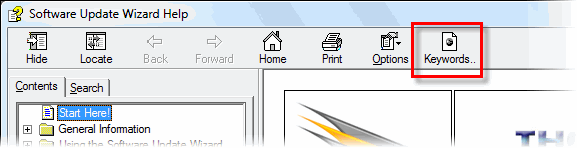
Each keyword is documented in the keywords reference page. You can also quickly jump to a keywords list sorted alphabetically or by category by clicking the 'Keywords' button at the top of this help file:
The ' Filename= ' keyword is the relative location of the update file on the web server.
' KillProcess= ' closes all running instances of myapplication.exe (in order that they may be updated and then restarted after the update without causing a file sharing violation). There are other options for replacing in-use files - see WindowTitle=, MoveFileEx= and Reboot in the keyword help sections.
The ' Message= ' posts a message to the user prior to downloading the update, which, in conjunction with the ' Importance= ' keyword provides the user with 'Yes' and 'No' buttons in order to choose whether to accept the update at that time.
Finally, the ' Backup=Yes ' keyword backs up the previous version of the file as 'myapplication.bak'.
The ' [1] ' at the top of the quoted section is a counter which the Software Update Wizard uses to deduce whether it has already processed the update. If this is the case there is no further processing of the update section corresponding to the counter.
There are further keywords which give you greater control over whether updates are needed - see CheckFile, CheckFileExists, FileDate, FileVersion and FileMD5. When you use these keywords you will usually also need to use the RunAlways keyword because otherwise the section counter (the ' [1] ' at the top of the quoted section) determines whether the rest of the update section is processed. RunAlways bypasses this test and always runs the CheckFile, CheckFileExists, FileDate, FileVersion and FileMD5 tests. This help page shows the logic the Software Update Wizard™ uses to determine whether an update is needed.
Note that update scripts also support the automatic unzipping of zip format files, and that you can launch one or more programs either before or after your software file is downloaded from the server.
There are additional examples of Software Update Wizard scripts here.
Please note that Software Update Scripts must not contain superfluous blank lines. Specifically:
The user launches myapplication.exe and it initiates an update calling the WebUpdate() function of wuw4.dll or by passing the script URL as an argument to wuwstub.exe. Wuwstub.exe must be located in the same folder as your running application. Wuw4.dll is installed by our wuwinstaller.exe redistributable installer (see Deployment) and is normally in the Windows folder.
(Wuwstub.exe is actually linked to wuw4.dll and it calls the exported WebUpdate() function. The process from wuwstub.exe on is therefore the same as if your application has called wuw4.dll's exported function.)
The wuw4.dll component communicates the file path of the update script on the server ( http://www.dp.co.uk/webupdate/webupdate.txt ) to the Software Update Wizard service and also launches the Software Update Wizard User Interface component (WuWUI.exe) which provides all interaction with the user.
WebUpdateSvc4.exe then downloads the update script file and processes it. It sends messages to WuWUI.exe whenever it needs to interact with the user, and receives messages back from WuWUI.exe whenever appropriate to the context it is processing.
If the update counter on the target PC is less than the counter in the update script section (see above) it processes that section of the update script. Otherwise, no user interaction occurs. The Software Update Wizard running as a service instructs WuWUI.exe to close and then goes back to sleep, awaiting another communication through the named pipe.
This is the sequence the user sees:
(a) Your application starts up as normal and calls the Software Update Wizard dll / wuwstub.exe application within its start-up code:
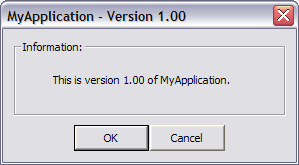
(b) The Software Update Wizard DLL / wuwstub.exe application communicates the server update script URL to the Software Update Wizard service through a named pipe. Your application continues as normal.
(c) The Software Update Wizard service downloads the script file from the server if the user is on line. Otherwise it simply returns without any further action.
(d) If the user is on line and the script file contains a relevant update the Software Update Wizard will process the script. The user will then see the following dialog message:

(e) If the user decides to install the update (by clicking 'Yes') then the Software Update Wizard will attempt to close all running instances of "Your Application" and post an (optional) warning before it closes them. Note that Windows will not allow an open file to be overwritten - therefore the Software Update Wizard has to close any instances of the application that are running on the client PC.

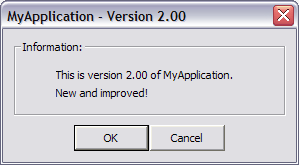
(f) The Software Update Wizard will close the nominated windows (applications) and download and install the update file, backing up the previous version to myapplication.bak. The user will see the following (optional) success message (or your own custom message):

(g) The Software Update Wizard will then restart myapplication.exe (i.e. the newly updated version) and the user's session will continue as normal.
Note that the Software Update Wizard maintains a log file in the same folder as WebUpdateSvc4.exe. The purpose of the log file is to maintain a cumulative record of updates processed and to assist in problem-solving, should your script fail for any reason. You may turn logging off in your update script using the keyword "LoggingOff", and back on with "LoggingOn".
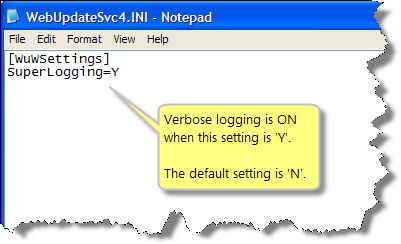
In addition to standard logging, you can switch on 'SuperLogging' on a PC by PC basis by editing the WebUpdateSvc4.ini file. If you change the 'SuperLogging' entry to 'Y' then the WebUpdateSvc4.log' file will comprehensively track the progress of the update script. The default for this setting is 'N' as otherwise the log file will grow more rapidly.
In addition, the Software Update Wizard can create an XML status file called 'LastUpdate.xml' in your application's folder which contains status information relating to the last URL processed by the Software Update Wizard. Your application can read it after the update in order to understand the result of the update. Here is an example from a failed call, with all the available tags included:
<WuW>
<InternetConnectedState>1</InternetConnectedState>
<WuWVersion>4.0.0.6</WuWVersion>
<LastRun>06/06/2005 - 20:29:37</LastRun>
<LastURL>http://www.mycompany.com/scripy.txt</LastURL>
<LastHttpCode>404</LastHttpCode>
<ErrorText>Failed to receive a valid HTTP response from the server.
«
(Check download URL in script!)</ErrorText>
<RunCounter>11</RunCounter>
</WuW>
The LastUpdate.xml file contains one or more of the following tags:
| InternetConnectedState | This key will be '1' if there was an active internet connection available, otherwise it will be '0'. (This is the BOOL value returned from an InternetGetConnectedState() Wininet call.) |
| WuWVersion | The version number of the Software Update Wizard that processed the last URL. |
| LastRun | The date and time of the last run of the Software Update Wizard, in dd/mm/yyyy - hh:mm:ss |
| LastURL | The last URL which the Software Update Wizard processed. Typically this will be either your update script (if no update was required) or the update file (if an update was required). |
| LastHttpCode | The last http: status code. 200 means it worked! |
| ErrorText | A formatted error message, including the http status code. |
| RunCounter | The value of the 'HKEY_LOCAL_MACHINE\SOFTWARE\WUW\UsageCounter' registry counter, which the Software Update Wizard increments at the end of every update process, irrespective of whether an update was actually made. (See WebUpdateWait() ). |
The Software Update Wizard decides which of the tags to write by reading the previous file and just populating the tags it finds. If you want to use the LastUpdate.xml file in your application to provide additional feedback to the user about the last update then you simply need to install / write a starter LastUpdate.xml file into your application's folder. The starter file should simply contain the tags you want recorded. For example, if all you want to know is whether the user was connected to the internet or not at the time of the last WebUpdate() call, your starter LastUpdate.xml would look like this:
<WuW>
<InternetConnectedState></InternetConnectedState>
</WuW>
The Software Update Wizard then populate the tag with the connected state each time it runs but omits all the other tags listed in the table above.
Be careful when your application loads this file. You may need to wait until the Software Update Wizard has written it by checking its Last Modified date.
That's it! Easy to deploy, easy to use, and minimising interruption / workload for your customers! The Software Update Wizard can also do things like replacing in-use files, initiating a reboot etc.. Please see the Keywords Reference page for more information on all the available options and the Additional Example Script page for more sample scripts.