Once you have purchased your Software Update Wizard licence you must register it using the following procedure, which converts your trial licence file (WebUpdateSvc4.lic, stored in the 'Program Files\SoftwareUpdateWizard' folder) into a registered, deployable, non-expiring one.
First, ensure that the Software Update Wizard service is running on your computer.
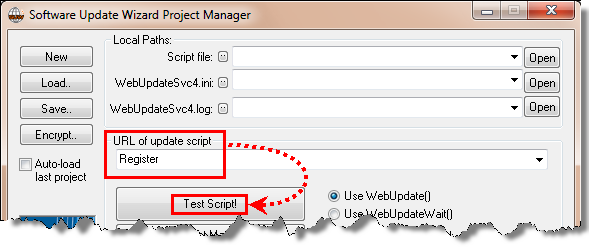
Then run the Software Update Wizard Project Manager Utility and type the word 'Register' into the field usually used for script urls, and click the 'Test Script' button, as shown here:
The following dialog box will then appear. Copy and paste the licence text from your registration email into the dialog box and click 'OK':

If the serial number is recognised your registration will be complete. Your initial 12 months support and maintenance period will commence and you will be entitled to receive free software updates and support during this period. When the 12 months free support period expires you may purchase a renewal at our web site. You will receive a support licence code, which you 'register' in the software using the process described here.
You can easily retrieve your registered serial number by typing the text 'WhatsMySerial' into the URL field of the Software Update Wizard Project Manager Utility and clicking the 'Test Script!' button. A window will appear with your original serial number.
Similarly, you can check the expiry date of your 12 months support period by typing the text 'CheckSupportExpiry' into the URL field of the Software Update Wizard Project Manager Utility and clicking the 'Test Script!' button. A window will appear with your original purchase date and the date your current support period expires. (N.b. internet connection required.)
Once you have registered your copy of the Software Update Wizard please remember to copy the (registered) version of WebUpdateSvc4.lic, the licence file, to every other location you previously copies the trial licence to during your evaluation period.
Note also that you must always deploy your registered licence file, WebUpdateSvc4.lic, with your application. Please ensure it is installed into the same folder as the application file which will be calling the Software Update Wizard. If a licence file is not found in the same folder as the application file which called the Software Update Wizard then the call will fail with the following message box:
